Shopify’s CSV route has no undo. Once the import is processed, the previous values exist only in the file you exported beforehand — assuming you exported one, and assuming you can work out which rows changed.
Every task in Bulk Product Edit by MITS records the previous value of every field it writes, which turns “undo” into a button rather than a restore project.
Three ways back
- Manual revert — open the finished task and revert it; the stored previous values are written back.
- Scheduled revert — set a revert time when you create the task, and it rolls back on its own.
- Selective correction — build a new task with a narrower filter to fix only the part that was wrong.
- Reverting is itself tracked, so the history shows both the change and the rollback.
Try a change on five products before trusting the catalog to it.
You will be redirected to the Shopify app store.
What the log tells you
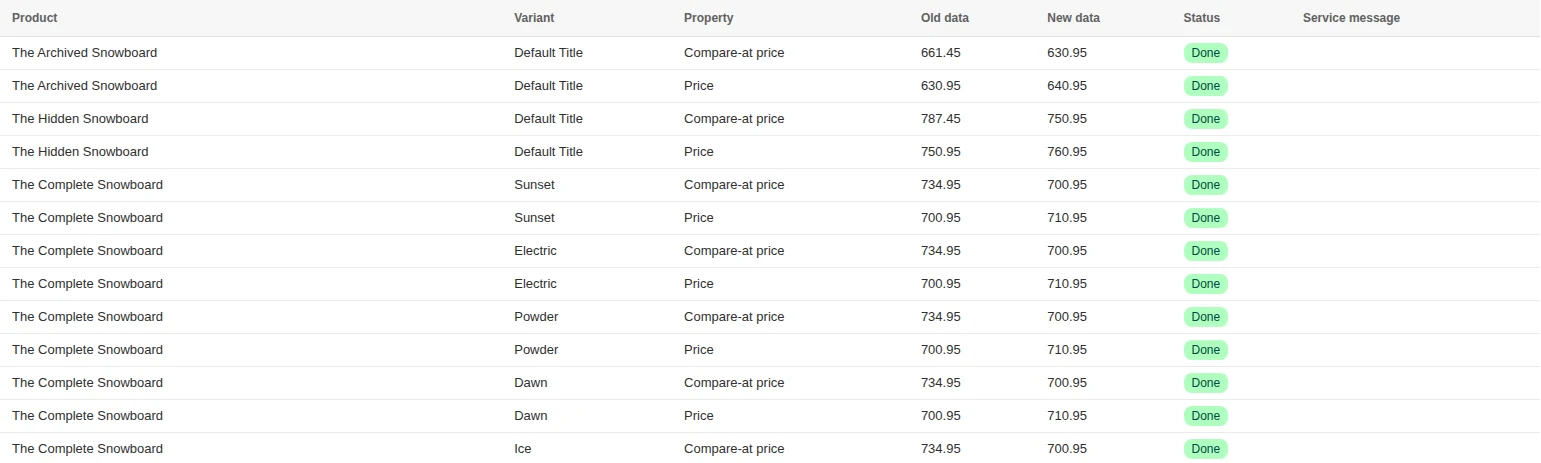
- Product and variant — exactly which items were touched.
- Property — which field changed.
- Old data and new data — the values before and after.
- Status — done, failed, skipped, reverted, revert failed.
- Service message — why an item was skipped, when it was.
- History is kept for 30 days on Basic, 45 on Standard and 90 on Plus; the Free plan keeps none.
A worked example: a discount that hit the wrong collection
- Open the task in the task list and read the log — the product column shows what was actually matched.
- Revert the task. Prices return to the values stored when it ran.
- Fix the filter, preview the selection, and confirm the count matches your expectation this time.
- Run the corrected task.
Why some items are skipped
If a product changed after the task ran — by another app, another task, or someone editing it by hand — a revert would overwrite the newer value. The app skips those items and lists them, rather than assuming its own snapshot is still authoritative.
That is a deliberate trade: a revert that is safe and reports what it did not touch is more useful than one that silently wins.
How to revert a bulk edit, step by step

- Open Tasks. Every bulk edit you ran is listed with its date, filters and editors.
- Open the task. The log shows each product or variant with the old and new value.
- Click Revert. Confirm “Revert this task”. The task moves to In revert queue, then Reverted.
- Check the result. If some items could not be restored, the status is “Not fully reverted” and the log names them.
What can be reverted
| Field | How the revert works |
|---|---|
| Price, compare-at, cost | The old value is written back |
| Inventory quantity | The change is reversed by the same amount, keeping sales made in between |
| Tags | Limited: added tags are not removed — run a remove-tags task instead |
| Title, description, SEO, handle | The previous text is written back |
| Status, vendor, type, SKU, barcode, weight, tax | The previous value is written back |
Revert later, automatically
For promotions, set the revert time when you create the task. The app restores the old values at that moment, which is how a weekend sale ends on Monday at 00:00 without anyone logging in.
How long history is kept
Task history is kept for 30 days on Basic, 45 on Standard and 90 on Plus; the free plan has no task history. A task can be reverted while it is in history.
Related guides
How to schedule a sale
Give a price change a start time and a revert time so it ends by itself.
Read moreBulk Product Edit vs Shopify’s native bulk editor
What Shopify’s built-in editor and CSV do, and the three jobs they cannot do.
Read moreSeven bulk editing mistakes
The seven recurring failures, and the thirty-second check that prevents each.
Read more